Nubexx UI5 PDF Viewer
The Nubexx PDF Viewer can be used on all device types (desktop, tablet and phone).
It extends the UI5 PDF Viewer (sap.m.PDFViewer), so this control can replace the SAP control transparently.
The PDF render engine is based on Mozilla's PDF.js with enhanced customizing features for
this PDF viewer.
Advantages
- Works in mobile browsers on phone and tablet
- Extended PDF format compatibility
- Visual appearance is almost identical in all browsers
- Various options to manage the control via API
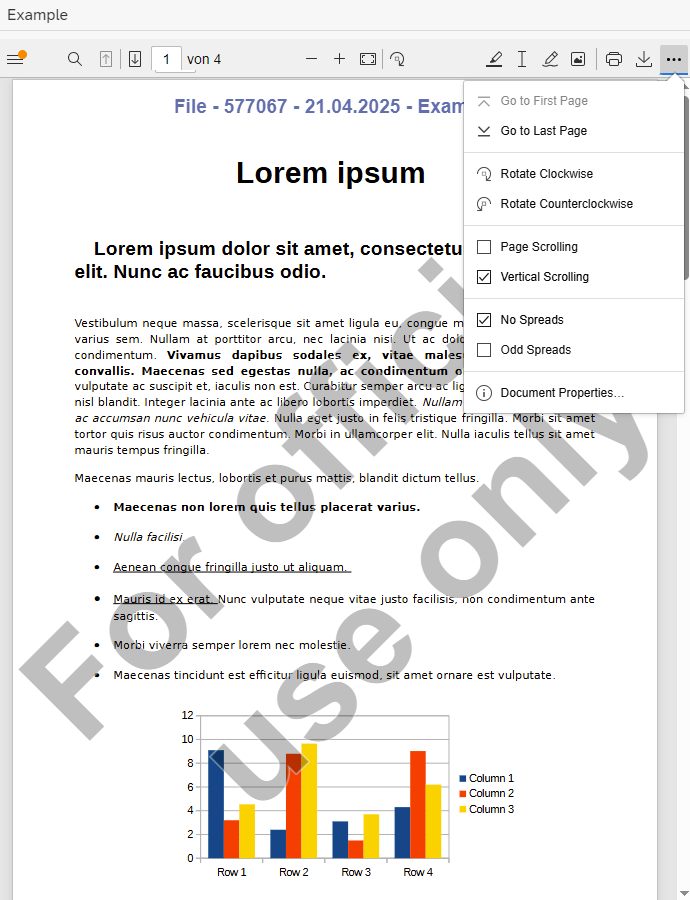
- Client-side watermark option
Integrated Document Protection Architecture
The Nubexx PDF Viewer is engineered to bridge the significant security gaps found in standard browser-based PDF displays. Especially in HR and legal departments, preventing unauthorized local copies of sensitive data is a primary requirement. Our control achieves this through a multi-layered security approach:
1. Signature-Safe Visual Watermarking
To maintain the legal integrity of digitally signed PDFs, our viewer avoids any modification of the original file, which would otherwise break the cryptographic signature. Instead, watermarks are applied as a dynamic overlay on the PDF canvas. This ensures that the document remains legally valid while every preview and print-out is clearly marked with traceable metadata (e.g., User-ID, Timestamp).
2. Advanced Toolbar & Save-Button Control
Unlike the native sap.m.PDFViewer, which acts as a wrapper for browser-dependent plugins, the Nubexx viewer utilizes
a custom toolbar. This gives developers full programmatic authority to hide or disable the Save, Download, and
Print functions. Access rights can be tied directly to SAP backend permissions, ensuring that only authorized
personnel can generate local copies.
3. Data Leakage Prevention: Disabling the Text Layer
For maximum protection against manual data extraction, the viewer allows the deactivation of the text selection layer. When enabled, users are prevented from highlighting and copying text via the clipboard CTRL + C.
- The technical advantage: While the visual selection is disabled, the internal search functionality remains fully operational. The viewer can still navigate to specific search hits without exposing the raw text layer to the user's cursor.
4. End-to-End Encryption with In-Memory Decryption
In tandem with the Nubexx Encryption Service, document payloads are transmitted as encrypted AES-256 streams. Decryption occurs strictly within the browser's memory during the rendering process. This architecture ensures that the "plain" PDF file never hits the browser's permanent cache and is not easily accessible via the browser's network console F12, closing a common vulnerability in standard Fiori apps.
For more information about this control see the API Reference and the Examples.
If you would like to see the control in action, please register to access our demo app.
Screenshots
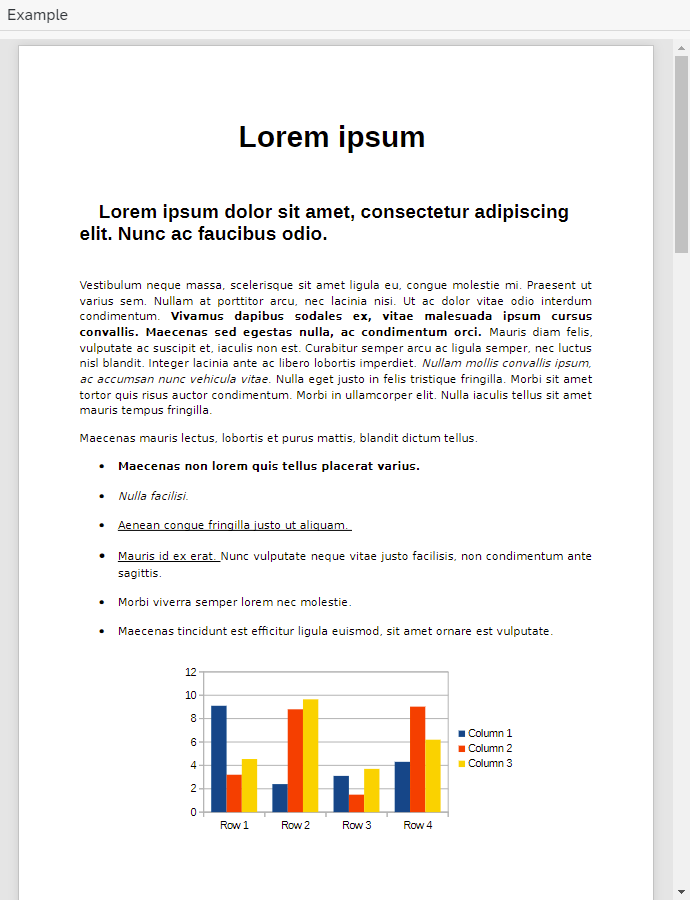
| Full control-set with watermark | Minimal control-set |
|---|---|
 |  |
Delta Chart
Comparison Nubexx vs. Standard sap.m.PDFViewer
| Nubexx PDF Viewer | SAP PDF Viewer | |
|---|---|---|
| Supported platforms | ||
| Desktop | ||
| Tablet | ||
| Phone | ||
| Elements or functions that can be activated or deactivated | ||
| Hide toolbar by viewport size | ||
| Hide toolbar by configuration | ||
| Download / Save | ||
| Open files from Open-Dialog or STRG+O | ||
| Presentation mode | ||
| Ask for filename on save | 1 | |
| Additional Functions | ||
| Enable / disable text selection / copy | ||
| Client-side watermark on Display / Print | ||
| End-to-End Encryption (AES) | 2 | |
| Supported PDF file formats | ||
| Standard PDF files | ||
| PDF XFA | 3 | |
| PDF portfolio | 4 | 3 |
Installation on SAP
- Import SAP transport request to target SAP Gateway/FES host
- Check transaction
SMW0for existing mime types.mjsand.wasm. See next section Prerequisites for SAP.
Prerequisites for SAP
The provided transport request can be installed on SAP systems 750++. Minimum sapui5 core release is 1.71
Some files of this library use ECMAScript modules that are delivered as .mjs files
and also .wasm files. Therefore the SAP host system must support these mime-types
So the mime-types must be added in the SAP backend (should the SAP transport request not have created them automatically)
-
Run transaction
SMW0 -
Select "Web-Object"
HTML Patterns for WebRFC-Applicationspress F8. -
In view "HTML templates for WebRFC" press F8 again.
-
In the next view (Object type) select the menu item
Settings->Maintain mime-types -
In the Mime-Types Table create a new item F5 and enter the following data and save this values.
- Type:
application/javascript - Extension
*.mjs
- Type:
-
Repeat the creation of mime-Type for .wasm
- Type:
application/wasm - Extension
*.wasm
- Type:
Keyboard shortcuts
| Modifier Keys | Key | ASCII-Codes | Function | Note |
|---|---|---|---|---|
| Ctrl, ⌘ | f | 70 | Open Find bar | |
| Ctrl, ⌘ | g | 71 | Find again | |
| Ctrl, ⌘ | + | 61, 107, 187, 171 | Zoom in | |
| Ctrl, ⌘ | - | 173, 109, 189 | Zoom out | |
| Ctrl, ⌘ | 0 | 48, 96 | Zoom reset | |
| Ctrl, ⌘ | ↑ | 38 | Go to first page | |
| Ctrl, ⌘ | ↓ | 40 | Go to last page | |
| Ctrl, ⌘ | s | 83 | Save document | if allowed |
| Ctrl, ⌘ | o | 79 | Open document | if allowed |
| Ctrl+Alt, ⌥+⌘ | p | 89 | Start full screen / presentation mode | if allowed |
| Ctrl+Alt, ⌥+⌘ | g | 71 | Focus the page number input field | if visible |
| ↑ | 38 | moveCaret up | if caret browsing mode is supported | |
| PgUp | 33 | Page back | ||
| ⌫ | 8 | Page back | if viewer is in presentation mode | |
| ← | 37 | Page back | if viewer is not in caret browsing mode | |
| k | 75 | Page back | ||
| p | 80 | Page back | ||
| Esc | 27 | Close secondary toolbar, Close Find bar | ||
| ↓ | 40 | Next page | if not in caret browsing mode | |
| PgDown | 34 | Next page | ||
| ↵ | 13 | Next page | ||
| Space | 32 | Next page | ||
| → | 39 | Next page | ||
| j | 74 | Next page | ||
| n | 78 | Next page | ||
| Pos1, Home | 36 | Go to first page | ||
| End | 35 | Go to last page | ||
| s | 83 | Activate cursor tool | ||
| h | 72 | Activate hand tool | ||
| r | 82 | Rotate clockwise | ||
| F4 | 115 | Toggle sidebar | ||
| Shift | ↵ | 13 | Page back | |
| Shift | Space | 32 | Page back | if in presentation mode and zoom = "page-fit" |
| Shift | ↑ | 38 | moveCaret up | |
| Shift | ↓ | 40 | moveCaret down | |
| Shift | r | 82 | Rotate anti-clockwise |